If you’re a Mac user running XAMPP for local development, you may have encountered frustrating issues like Apache not starting, phpMyAdmin throwing session errors, or MySQL failing to launch. Don’t worry — these are common problems, and in this guide, we’ll show you step-by-step solutions to get your local development environment back on track.
1. Apache Not Starting
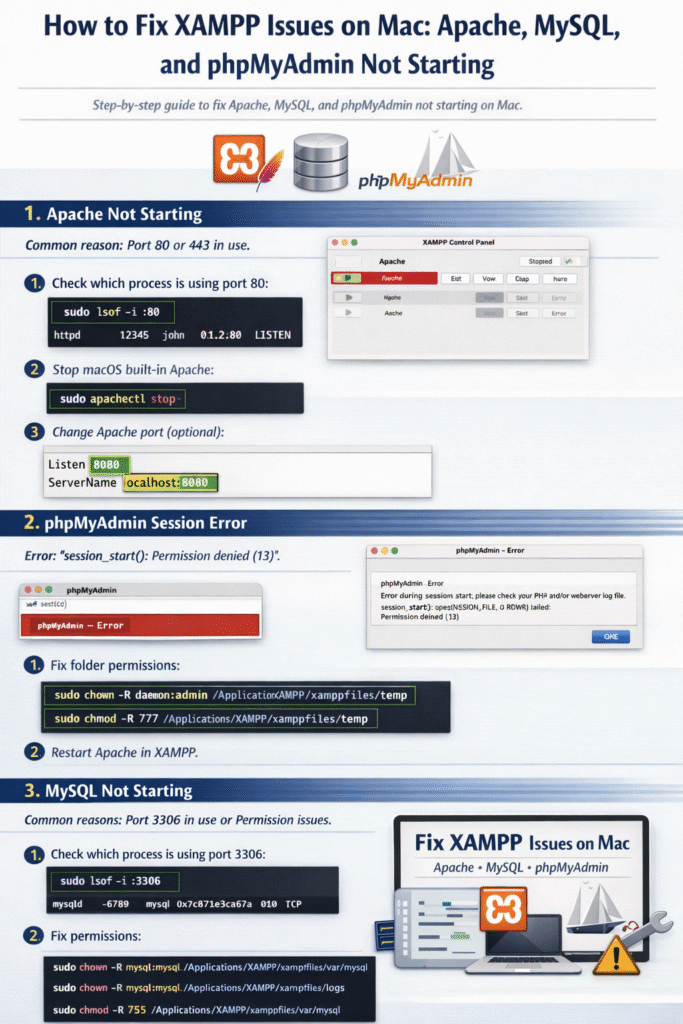
Common reason: Port 80 or 443 is already in use by another process, or Apache has permission issues.
✅ How to Fix:
- Check which process is using port 80:
Open Terminal and run:sudo lsof -i :80If you see a process likehttpdorSkype, it’s occupying the port. - Stop macOS built-in Apache (if running):
sudo apachectl stop - Change Apache port (optional):
Edit the configuration file:/Applications/XAMPP/etc/httpd.confReplace:Listen 80With:Listen 8080And also update:ServerName localhost:80To:ServerName localhost:8080Access Apache viahttp://localhost:8080. - Fix permissions (if needed):
sudo chmod -R 755 /Applications/XAMPP sudo chown -R root:admin /Applications/XAMPP - Kill stuck Apache processes:
sudo killall httpd - Restart Apache from XAMPP Control Panel.
2. phpMyAdmin Session Error
You may see an error like:
Error during session start; please check your PHP and/or webserver log file.
session_start(): open(SESSION_FILE, O_RDWR) failed: Permission denied (13)
Cause: PHP cannot write session files into the temp folder.
✅ How to Fix:
- Fix folder permissions:
sudo chown -R daemon:admin /Applications/XAMPP/xamppfiles/temp sudo chmod -R 777 /Applications/XAMPP/xamppfiles/temp - Restart Apache in XAMPP.
Now, phpMyAdmin should work normally.
Tip: macOS updates or restoring XAMPP from backup can sometimes reset folder permissions, causing session errors.
3. MySQL Not Starting
Common reasons:
- Port 3306 already in use
- Permission issues
- Corrupted MySQL files
✅ How to Fix:
- Check which process is using port 3306:
sudo lsof -i :3306Kill any existing MySQL processes:sudo killall mysqld - Fix permissions:
sudo chown -R mysql:mysql /Applications/XAMPP/xamppfiles/var/mysql sudo chown -R mysql:mysql /Applications/XAMPP/xamppfiles/logs sudo chmod -R 755 /Applications/XAMPP/xamppfiles/var/mysql - Remove stale PID and socket files:
sudo rm -f /Applications/XAMPP/xamppfiles/var/mysql/*.pid sudo rm -f /Applications/XAMPP/xamppfiles/var/mysql/*.err sudo rm -f /Applications/XAMPP/xamppfiles/var/mysql/mysql.sock - Restart MySQL from XAMPP.
Pro tip: Avoid installing multiple MySQL instances (like Homebrew + XAMPP) on the same machine — they conflict over port 3306.
✅ Quick Tips to Avoid XAMPP Issues on Mac
- Always run XAMPP as an admin user.
- Avoid updating macOS while XAMPP is running.
- If migrating or restoring XAMPP, check folder permissions immediately.
- Use alternate ports (8080 for Apache, 3307 for MySQL) if default ports are busy.
By following these steps, you can ensure that Apache, MySQL, and phpMyAdmin work seamlessly on your Mac. These fixes are especially helpful for developers working with Laravel, WordPress, or PHP projects locally.